基本用法
Vue过渡动画的核心原理依然是采用CSS类来实现的,只是Vue帮助我们在组件的不同生命周期自动切换不同的CSS类。
Vue中默认提供了一个名为transition的内置组件,可以用其来包装要展示过渡动画的组件。
transition组件的name属性用来设置要执行的动画名称,Vue中约定了一系列CSS类名规则来定义各个过渡过程中的组件状态。
1
2
3
4
5
6
7
8
9
10
11
12
13
14
15
16
17
18
19
20
21
22
23
24
25
26
27
28
29
30
31
32
33
34
35
36
37
38
39
40
41
42
43
44
45
46
47
48
49
50
51
|
<style>
      .ani-enter-from {
          width: 0px;
          height: 0px;
          background-color: red;
      }
      .ani-enter-active {
          animation: keyframe-in 3s;
      }
      .ani-enter-to {
          width: 100px;
          height: 100px;
          background-color: blue;
      }
      .ani-leave-from {
          width: 100px;
          height: 100px;
          background-color: blue;
      }
      .ani-leave-active {
          animation: keyframe-out 3s;
      }
      .ani-leave-to {
          width: 0px;
          height: 0px;
          background-color: red;
      }
  </style>
  <div id="Application">
      <button @click="click">显示/隐藏</button>
      <transition name="ani">
          <div v-if="show">
          </div>
      </transition>
  </div>
  <script>
      const App = Vue.createApp({
          data(){
              return {
                  show:false
              }
          },
          methods:{
              click(){
                  this.show = !this.show
              }
          }
      })
      App.mount("#Application")
  </script>
|
当我们为transition组件的name属性设置动画名称之后,当组件被插入页面或被移除时,其会自动寻找以此动画名称开头的CSS类,格式如下:
1
2
3
4
5
6
7
| x-enter-from
x-enter-active
x-enter-to
x-leave-from
x-leave-active
x-leave-to
|
x-enter-from类在组件即将被插入页面时被添加到组件上,可以理解为组件的初始状态,元素被插入页面后此类会马上被移除。
v-enter-active类在组件的整个插入过渡动画中都会被添加,直到组件的过渡动画结束后才会被移除。可以在这个类中定义组件过渡动画的时长、方式、延迟等。
v-enter-to类在组件被插入页面后立即被添加,此时x-enter-from类会被移除,可以理解为组件过渡的最终状态。
后面3个与前面3个相对应,如x-leave-from即为移除组件时过渡动画的起始状态。
运行程序,注意到动画执行完成后,组件的样式并不会保留,且并没有预期的过渡效果。下面将会演示更常见的做法:在组件本身绑定一个最终状态的样式类
推荐用法
1
2
3
4
| <transition name="ani">
<div v-if="show" class="demo">
</div>
</transition>
|
1
2
3
4
5
| .demo {
width: 100px;
length: 100px;
background-colour: blue;
}
|
1
2
3
4
5
6
7
8
9
10
11
12
13
14
15
16
17
18
19
20
21
22
23
24
| @keyframes keyframe-in {
from {
width: 0px;
height: 0px;
background-color: red;
}
to {
width: 100px;
height: 100px;
background-color: red;
}
}
@keyframes keyframe-out {
from {
width: 100px;
height: 100px;
background-color: blue;
}
to {
width: 0px;
height: 0px;
background-color: red;
}
}
|
关键帧动画的定义使得animation属性生效,并使得过渡效果更加生动
1
2
3
4
5
6
7
8
9
10
11
12
13
14
15
16
17
18
19
20
21
22
23
24
25
26
27
28
29
30
31
32
33
34
35
36
37
38
39
40
41
42
43
44
45
46
47
48
49
50
51
52
53
54
55
56
57
58
59
60
61
62
63
64
65
66
67
68
69
70
71
72
73
74
75
76
77
78
79
80
81
82
83
84
85
86
87
88
89
90
91
| <!DOCTYPE html>
<html lang="en">
<head>
<meta charset="UTF-8">
<meta http-equiv="X-UA-Compatible" content="IE=edge">
<meta name="viewport" content="width=device-width, initial-scale=1.0">
<script src="https://unpkg.com/vue@3/dist/vue.global.js"></script>
<title>Vue过渡动画</title>
</head>
<body>
<style>
@keyframes keyframe-in {
from {
width: 0px;
height: 0px;
background-color: red;
}
to {
width: 100px;
height: 100px;
background-color: red;
}
}
@keyframes keyframe-out {
from {
width: 100px;
height: 100px;
background-color: blue;
}
to {
width: 0px;
height: 0px;
background-color: red;
}
}
.demo {
width: 100px;
height: 100px;
background-color: blue;
}
.ani-enter-from {
width: 0px;
height: 0px;
background-color: red;
}
.ani-enter-active {
animation: keyframe-in 3s;
}
.ani-enter-to {
width: 100px;
height: 100px;
background-color: blue;
}
.ani-leave-from {
width: 100px;
height: 100px;
background-color: blue;
}
.ani-leave-active {
animation: keyframe-out 3s;
}
.ani-leave-to {
width: 0px;
height: 0px;
background-color: red;
}
</style>
<div id="Application">
<button @click="click">显示/隐藏</button>
<transition name="ani">
	<div v-if="show" class="demo">
	</div>
</transition>
</div>
<script>
const App = Vue.createApp({
data(){
return {
show:false
}
},
methods:{
click(){
this.show = !this.show
}
}
})
App.mount("#Application")
</script>
</body>
</html>
|
运行效果
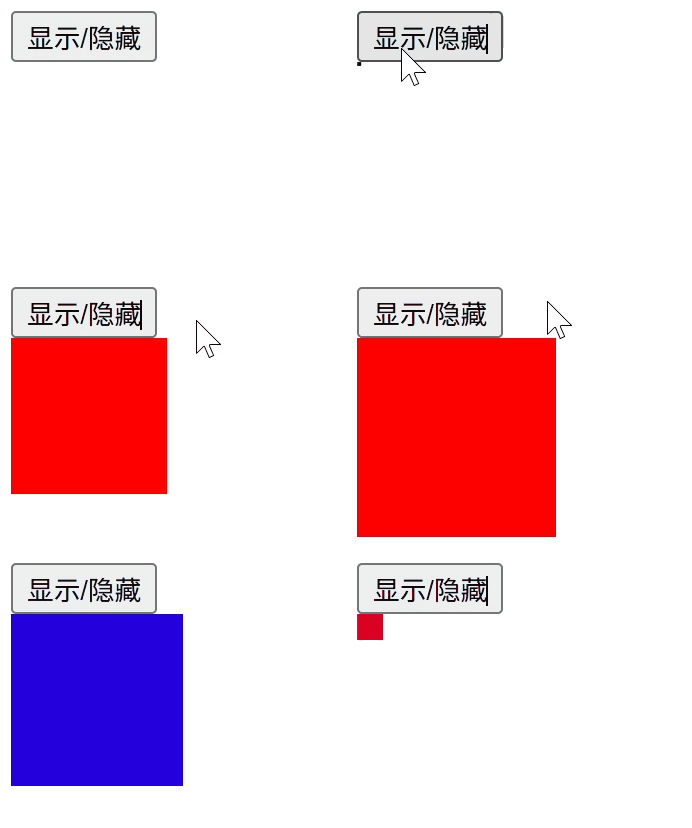
可以看到,从0x0到100x100的红色,显示动画结束后立即变为蓝色,这是因为关键帧动画与Vue过渡类定义的样式不一致(为了演示),前者优先级高。
最佳实践是保持关键帧和过渡类样式的一致性,或者根据需要明确选择使用哪种方式来控制过渡效果。